
Overview
You’ll be asked to respond to ‘Topics’ that relate to specific controls in each assessment framework.
Each topic contains a varying number of ‘Requirements’ divided into the three maturity levels: Maturity Level 1 (ML1), Maturity Level 2 (ML2) and Maturity Level 3 (ML3).
To complete the assessment, respond to questions in each of the requirements.
Completing topics
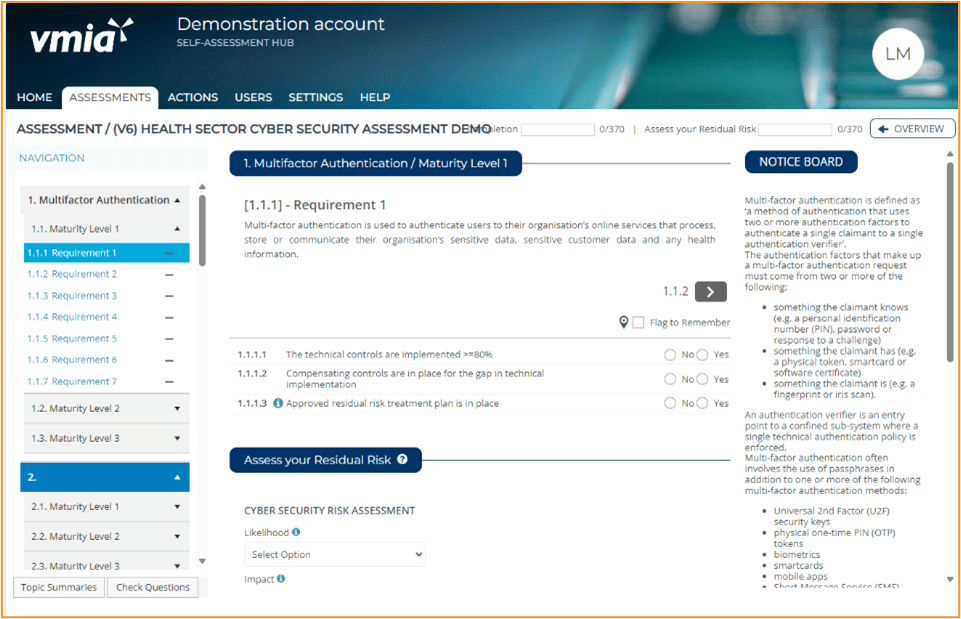
- Each requirement has descriptions and question sets
- The assessment navigation menu is on the left. Scroll through to see the list of topics.
- The notice board on the right contains topic explanations. Scroll down to read all information including measurements and documentation.
- Each requirement has three sections:
a. Question set – select most appropriate answer.
b. Assessment of residual risk – click dropdown box to see options.
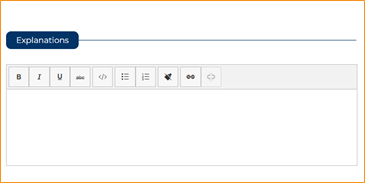
c. Comments – free text section. - Move through requirements by clicking blue arrows or selecting on the navigation menu.
Notes:
- You don’t need to attach evidence to this assessment. However, any evidence available to Digital Health on request may be listed in comments section.
- If you need to answer a question later, use the ‘Flag to remember’ checkbox.
- For more information hover over info icons

or

Data from the Health Sector CSA informs your completion of the Victorian Government Cyber Maturity Benchmark if it applies to your organisation. The topic summary page is an essential part of completing your Health Sector CSA.
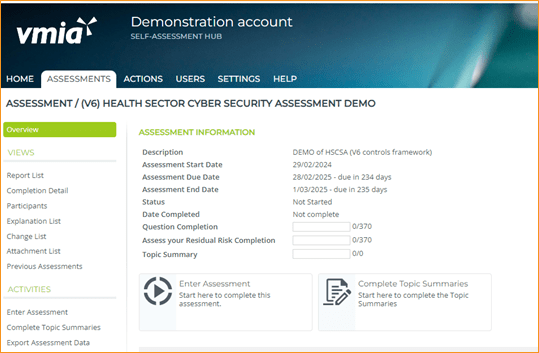
The topic summary page can be accessed through your assessment overview page.
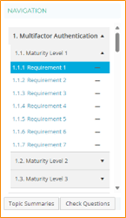
Alternatively, after you enter your assessment, you can also access the topic summary page through the navigation bar situated on the left had side of your assessment page.
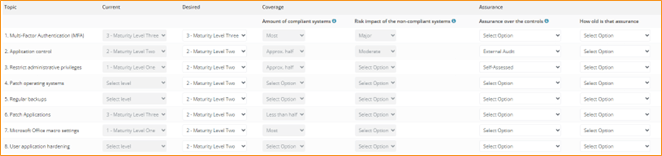
In the topic summary page (below), you can provide responses for your desired maturity level, coverage and assurance for Essential Eight. All other responses are automatically generated based on answers provided in your assessment.
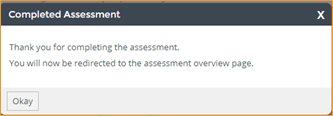
The Hub automatically saves your work. Your answers and comments are saved as you progress through the assessment, and if you click on any page in the Hub before closing your browser.
Health sector cyber security guide
This reference guide is designed to assist Department of Health clients in navigating and utilising the survey functionality available on the VMIA Self-Assessment Hub. It provides step-by-step instructions to ensure users can complete their assessments efficiently and accurately.
- Navigate the survey
- Complete the survey
- Send the survey for Approval
- Approving the survey
From the Self-Assessment Hub homepage, navigate to ‘Assessments’.
There are two ways:
Option one
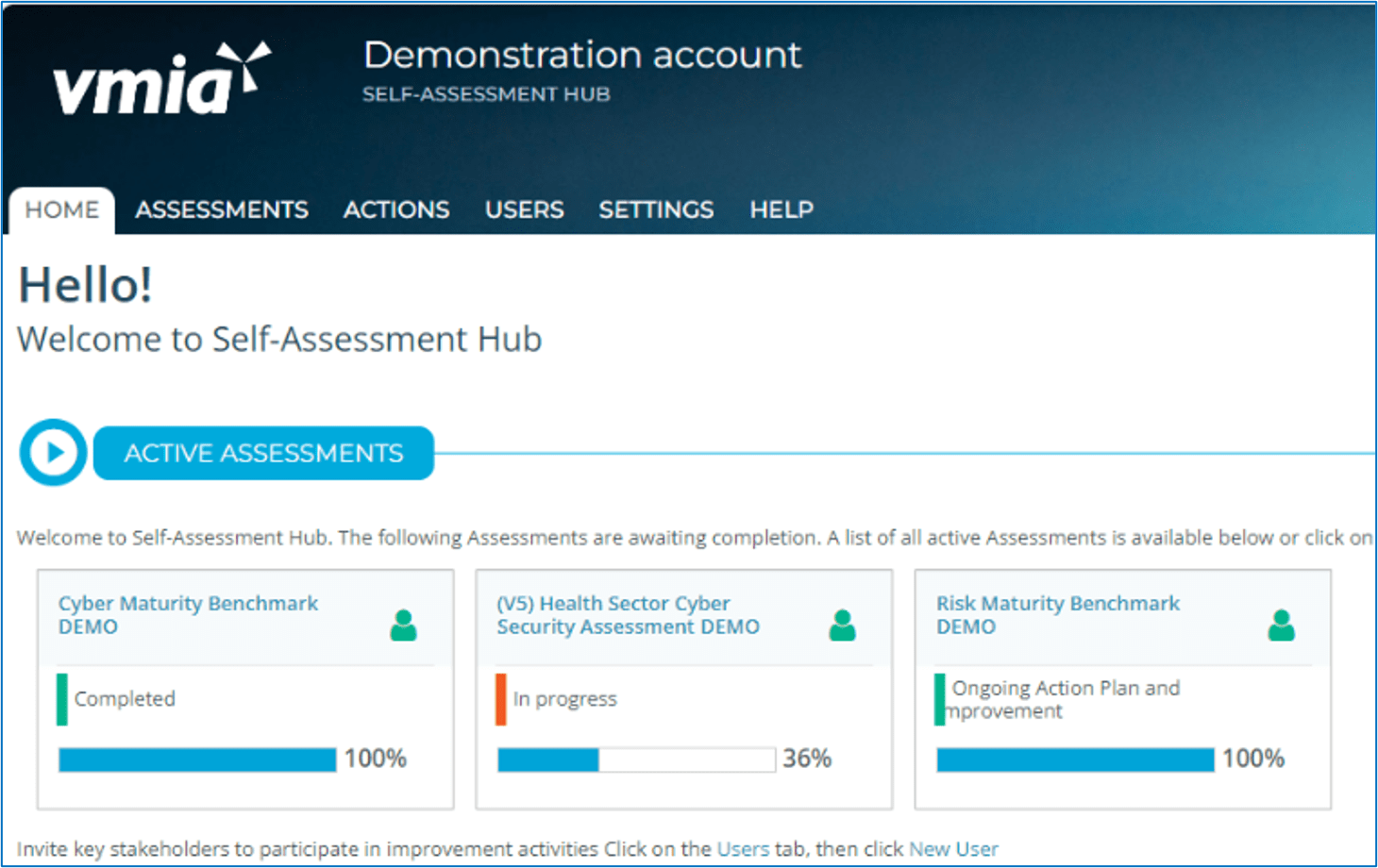
- From the HOME tab, go to ‘ACTIVE ASSESSMENTS’.
- Click anywhere on the Assessment/survey tile’ button and the campaign page will appear.
Option two
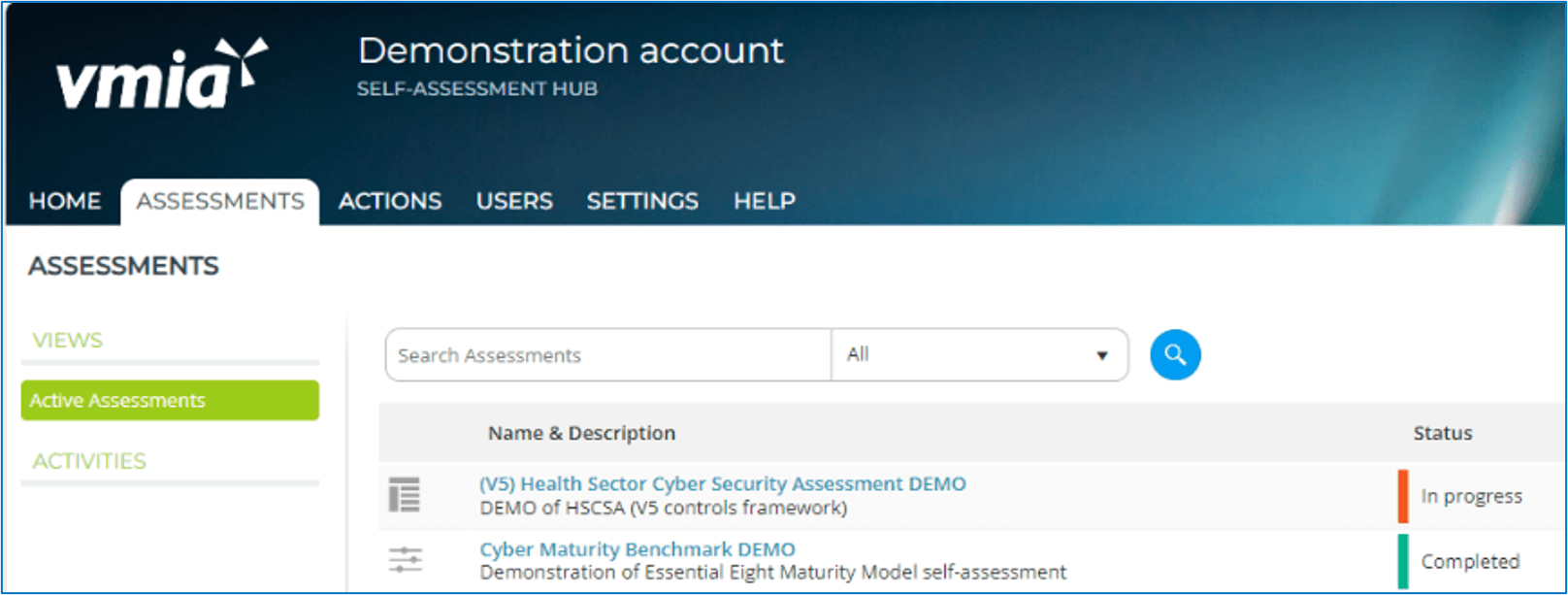
- From the tabs bar at the top of the window, click on the ‘ASSESSMENTS’ tab.
- Click on the assessment/survey name and the campaign page will appear.
There are two action tiles available for the survey: Enter Assessment and Completion Detail.
The Enter Assessment tile allows users to complete the survey.
Once the survey has been submitted, the Completion Detail tile enables users to view their completed survey responses.Accessing the survey (enter assessment)
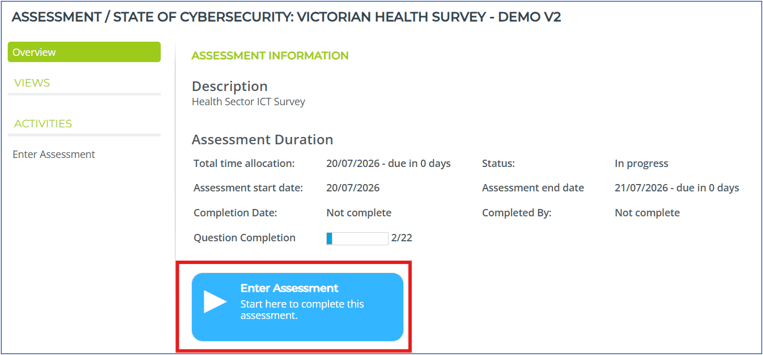
Click “Enter Assessment” action button to complete the main survey.
Types of questions
The survey consists of 22 questions, each requiring a specific response type.
These include:
- Single choice
- Hybrid single choice with text
- Multiple choice
- Text only
- Percentage integers
- Ranking options
Note: All explanatory notes are mandatory and must be provided for each question.
Navigate between questions
Click the back and forth arrows to move between survey questions.

Flag questions for later review
Tick the Flag to Remember icon to mark questions you wish to revisit before submitting the survey.

Navigation pane
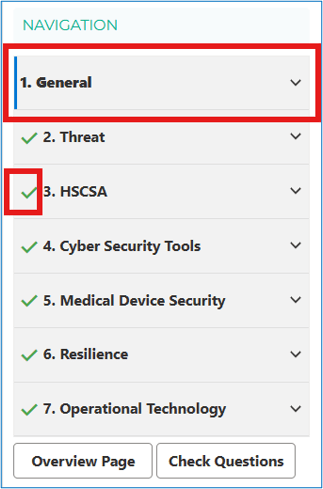
In collapsed view, a green tick will only appear if all questions within a topic have been completed.
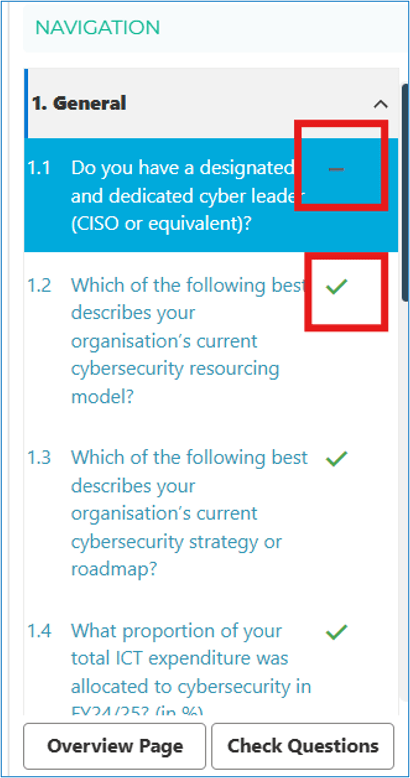
In expanded view, unanswered questions are indicated with a hyphen, while answered questions display a green tick.
Return to Overview page
There are 2 ways to return to the survey overview page:
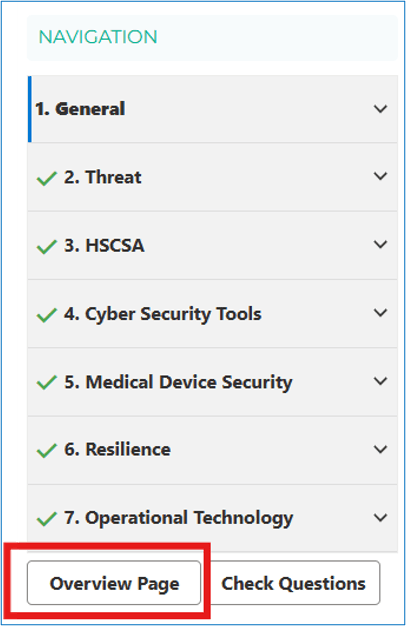
Option 1: Select the Overview Page action button located below the navigation pane.
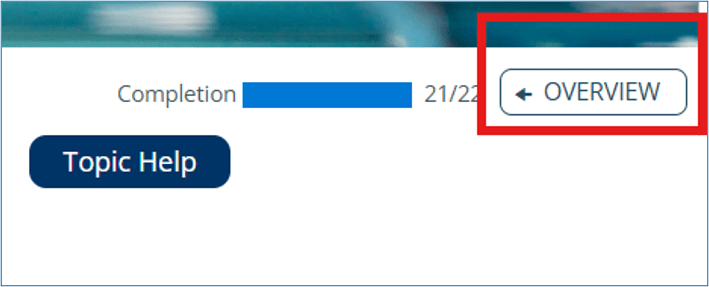
Option 2: Click the OVERVIEW action button found below the profile initials.
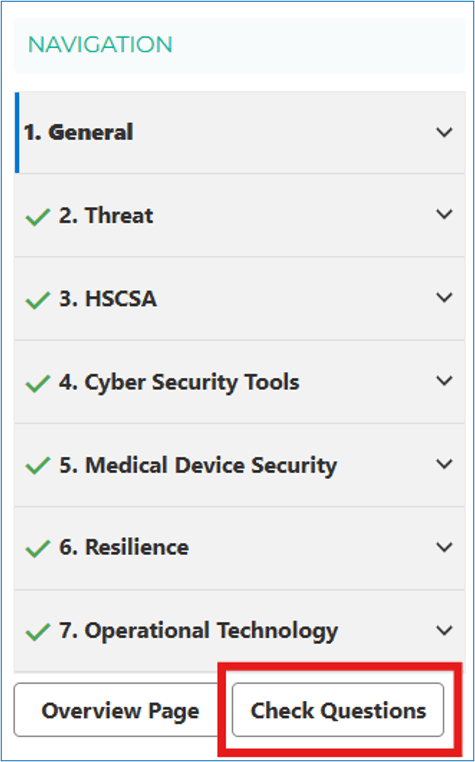
Checking unanswered questions
To check if questions that have not been completed, select the Check Questions action button.
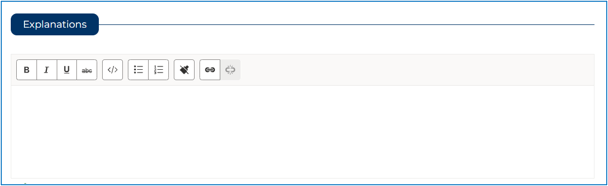
Enter any explanatory notes
Add your Explanatory notes in the text box. This is not a mandatory field.
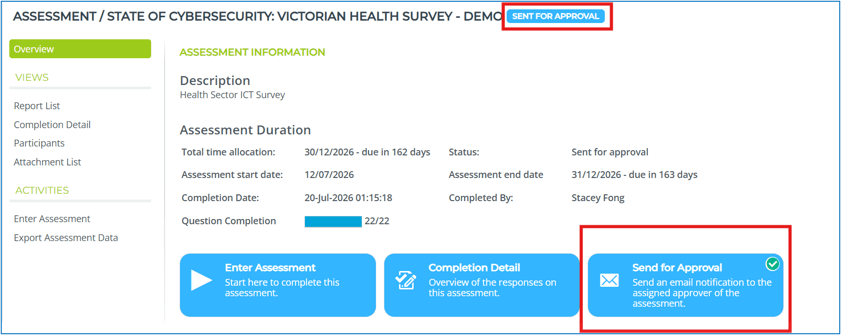
Submitting completed survey
Once all survey questionnaires have been completed the ‘Waiting for Approval’ Orange label will appear next to the survey name as well as the “Send for Approval” action button will appear next to the Completion Detail action button.
Approving the completed survey
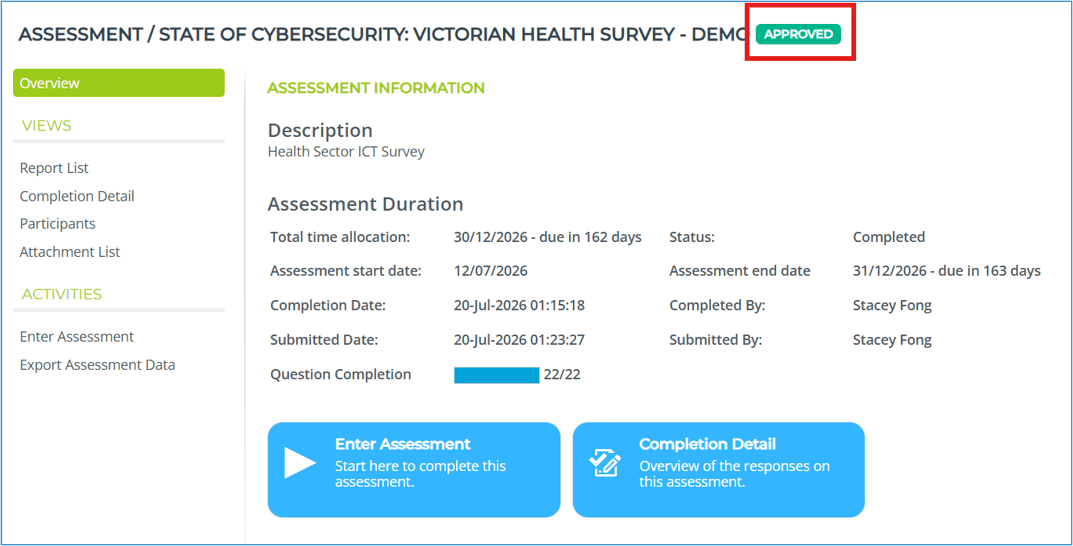
Once a completed survey has been submitted, the approver can proceed to review and approve it. On the approver’s Overview page, an Approve survey action will become available next to the Completion Detail action button. This action allows the approver to finalise the survey approval after thoroughly reviewing the submitted responses.
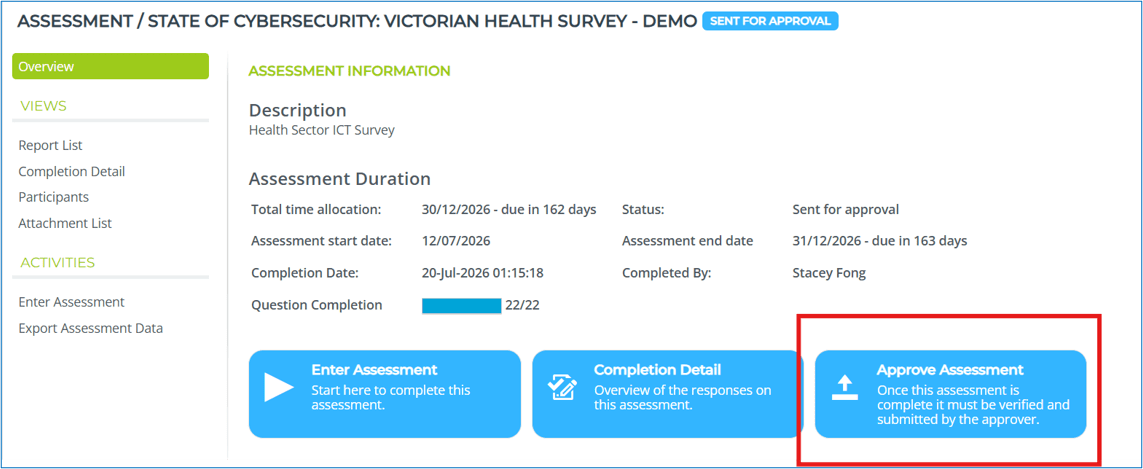
Once a completed survey has been submitted, the approver can proceed to review and approve it. On the approver’s Overview page, an Approve survey action will become available next to the Completion Detail action button. This action allows the approver to finalise the survey approval after thoroughly reviewing the submitted responses.
Generating reports
On any of your assessment overview pages, select “Report List” from the sub-menu to view reports specific to that assessment.
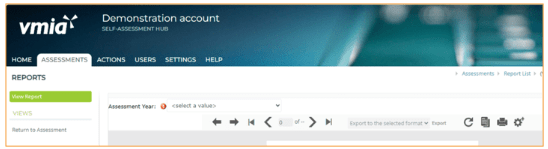
To generate the report, please select all options from the dropdown boxes available. You may also export to any formats supported.
Updated